
 eSIM Studios
Remotely controlling the shutter on your iPhone's camera lets you include yourself in the photo while avoiding the limitations of a selfie. For example, it allows you to take a picture of a wider scene with you included in the frame, which is ideal for landscape shots or group photos. If your iPhone is on a tripod, taking the shot remotely also reduces the risk of camera shake. Here's how to do it – and you don't need an Apple Watch.
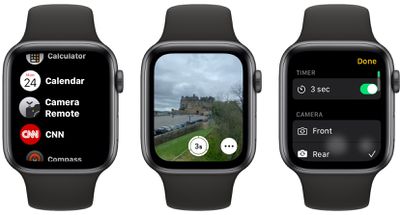
 There are more ways than one to take a picture on your iPhone remotely. If you have an Apple Watch, you can open the Camera Remote app that comes included. If you don't have a n Apple Watch, skip to our Voice Control steps.
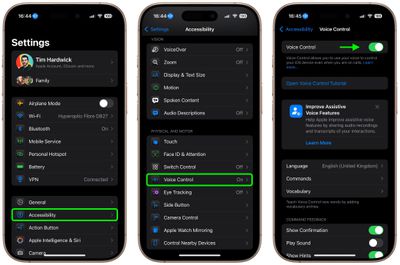
If you don't have an Apple Watch, don't worry. You can also use Voice Control to remotely control the camera on your iPhone. That's because you can trigger the camera shutter with the volume buttons, which can also be controlled with your voice. Here's how it works.
Final tip: If you're familiar with the Shortcuts app, you can find a shortcut in the Gallery called "Say Cheese" that lets you use Siri to control your iPhone's camera remotely. Once you've added it to your active shortcuts and given it permission to access your camera and microphone, you'll be able to take photos remotely by saying "Hey Siri, say cheese."

No comments