
 eSIM Studios
In iOS 26, Apple has extended Visual Intelligence to work with content that's on your iPhone, allowing you to ask questions about what you're seeing, look up products, and more.
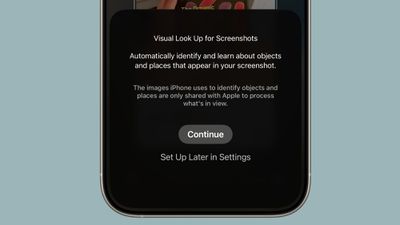 Visual Intelligence started out in iOS 18.2 as a Camera Control button function that can describe what you are looking at, get details about a restaurant or business, translate text, and the like.
But in iOS 26, Visual Intelligence is no longer just for learning more about your physical surroundings. You can also use the feature to analyze content on your iPhone screen, simply by pressing the same buttons you use to take a screenshot.
You can search across apps, go straight to relevant websites, add an event to your calendar, and more. Keep reading to learn what you can do with it. Note that Visual Intelligence is an Apple Intelligence feature of iOS 26 that's exclusive to the iPhone 15 Pro, iPhone 16 series, and iPhone 17 series (including iPhone Air).
Start by taking a screenshot: Quickly press and release the iPhone's Side button and the Volume Up button at the same time.
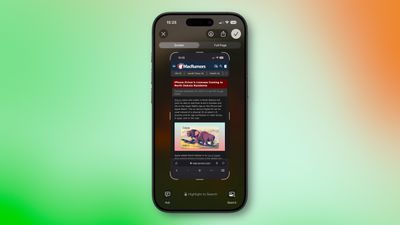 Once the screenshot interface appears, you'll see Visual Intelligence options along the bottom. The options offered up will depend on the content, but they let you interact with what you've just captured in several ways.
When you're done with the screenshot, you can either tap ✖ to discard it or ✔ to keep it in your Photos library.

No comments